
Google My Business: Setup Guide
Use this guide to set up your business listing on Google. This will add to their directory of businesses so you can appear in relevant searches near you. As you perform more work on LawnGuru, your work and your reviews will feed your listing and quickly place you at the top of results nearby.
Step By Step Instructions
Step 1. Navigate to https://www.google.com/business/ and enter your business name. Since you're not yet listed on Google, even if your business name appears, click "Create a business with this name".
This will begin the process of listing your business on Google.
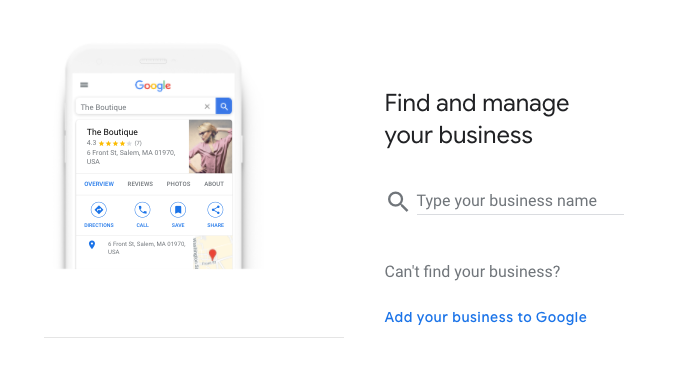
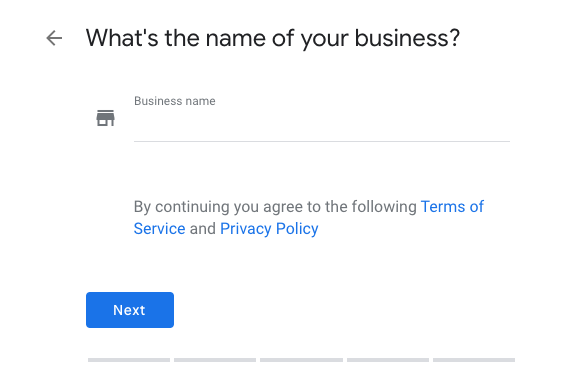
Step 2. Enter the name of your business and then click next
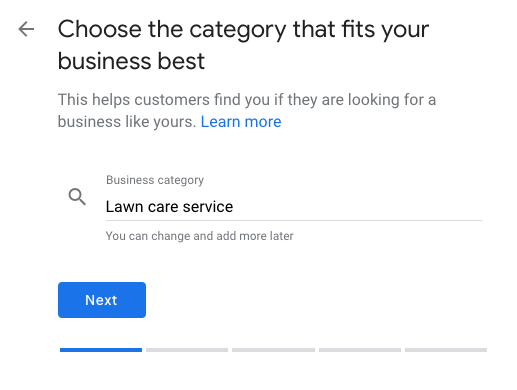
Step 3. Enter "Lawn Care Service" and then click next
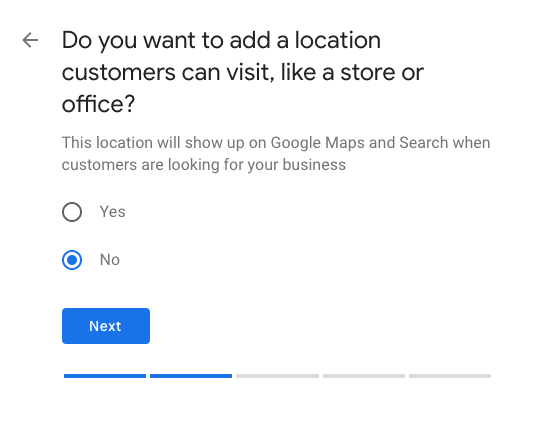
Step 4. Select "No" to ensure your address isn't published - you're not a store!
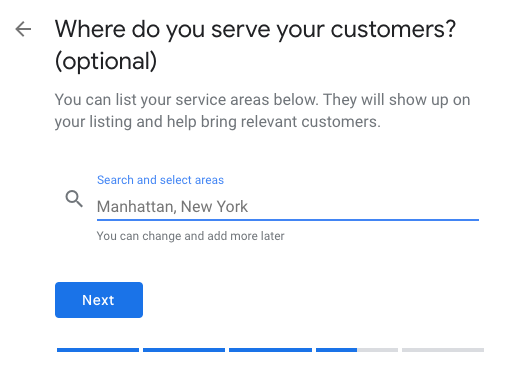
Step 5. Enter ALL the city or town names in your service area, for example an Ann Arbor based company who services Ann Arbor, Ypsilanti, Dexter & Whitmore Lake would want to enter each of those individually on this page. Every city you enter is a city in which you can expect to show up in the results. So take the time to be thorough.
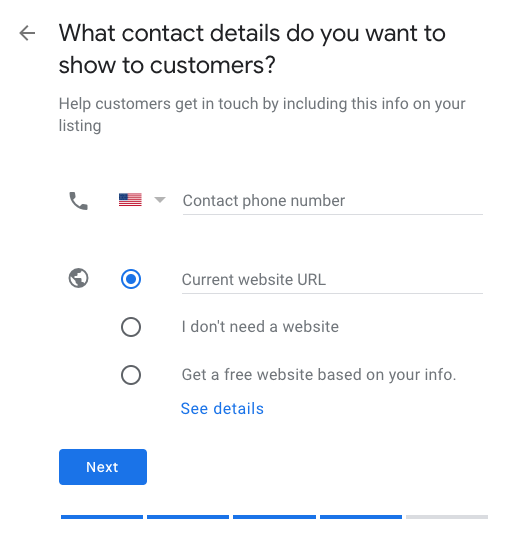
Step 6. Type in your business phone number
Then, paste the link to your free LawnGuru website in the second field, where it says "current website URL". This is essential to do without a typo
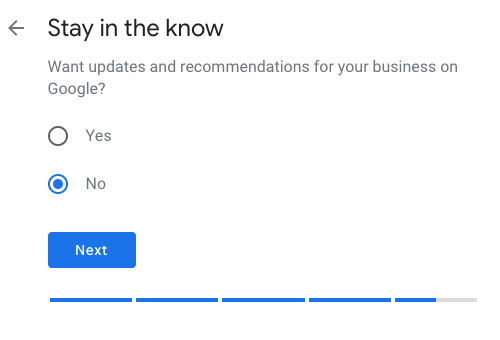
Step 7. Choose Yes or No here. Choosing No will keep your inbox free of clutter - we're already on top of best practices to dominate search for you.
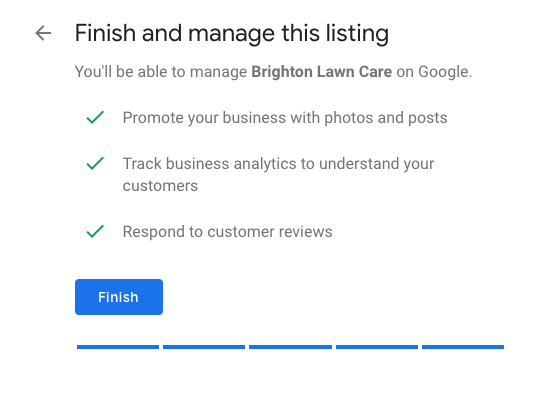
Step 8. Click finish to go to your new Google My Business dashboard
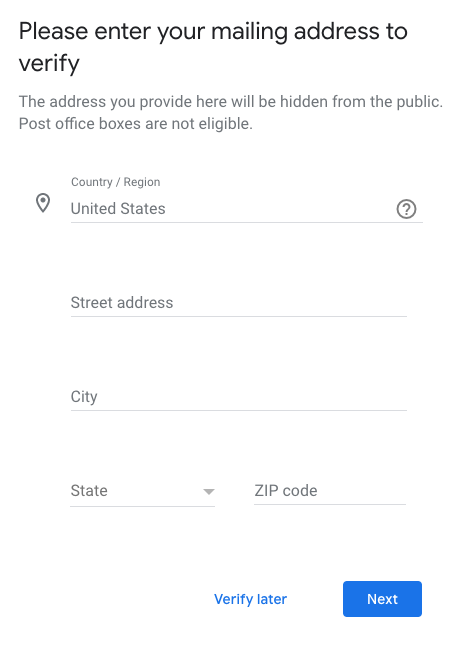
Step 9. Enter your mailing address where you can receive your confirmation postcard.
This has to be a real location where you can expect to receive your postcard, it won't ever be published or made public.
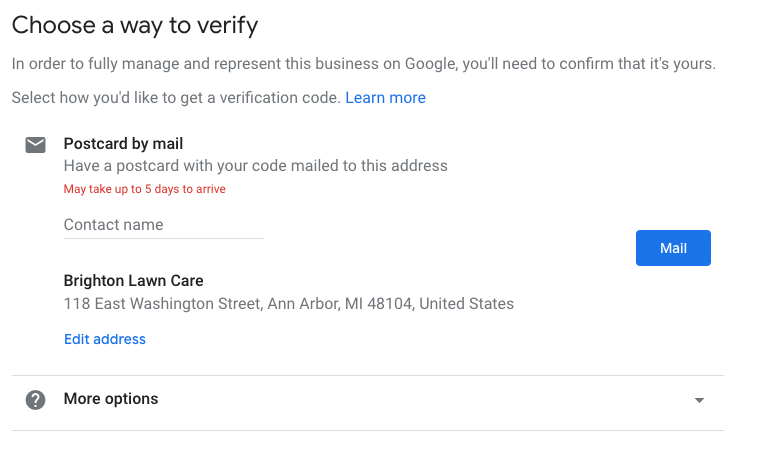
Step 10. Choose Postcard By Mail by entering your first and last name and clicking "Mail"
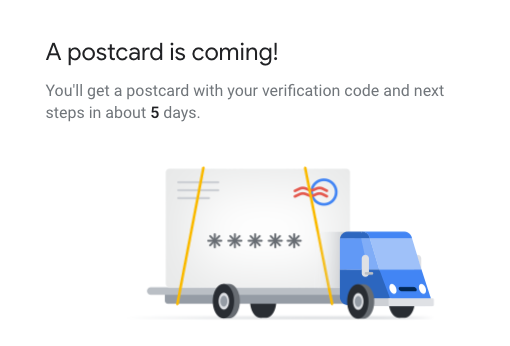
Step 11. You're almost verified - just make sure to watch your mail and be sure to catch the plain white envelope that comes from Google addressed to the contact name at the address you provided. It will contain the secret pin that will complete your verification and turn your listing on for search near you.
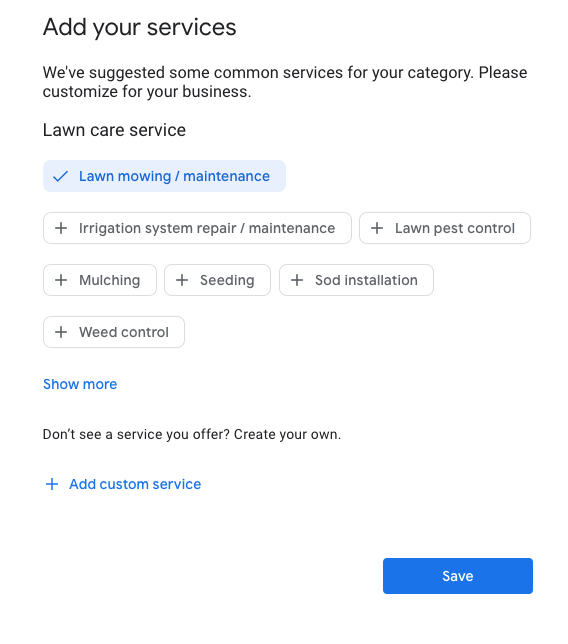
Step 12. Finish setting up your business by continuing on to add your services. Add all the services you offer to customers to ensure you're appearing in as many searches as possible and aren't getting traffic that isn't relevant to your business.
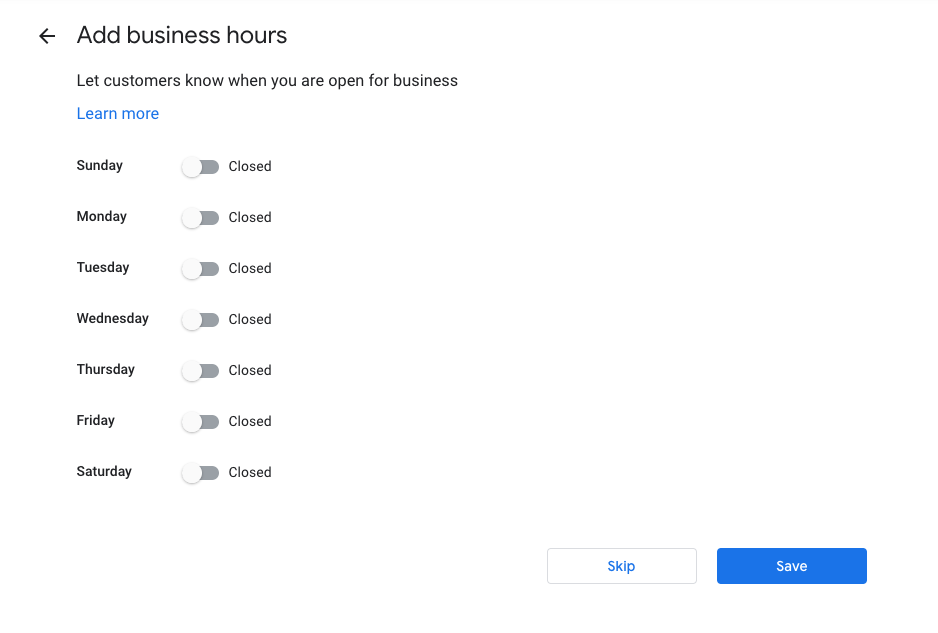
Step 13. Add business hours if you keep them, you can leave this blank and skip it without penalty.
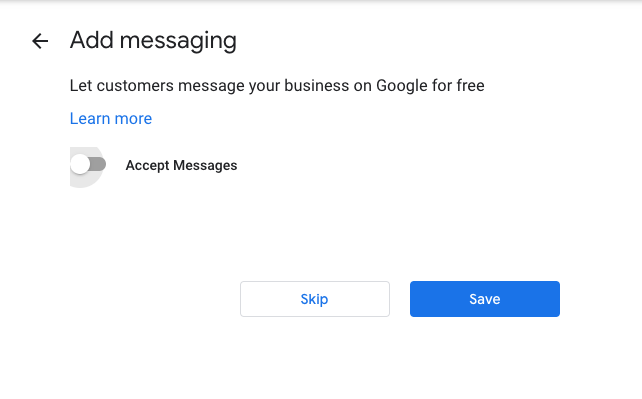
Step 14. You can turn on or off messaging, we recommend turning it off so customers are directed to use your website. This will automatically put them in your marketing funnel for email or text marketing and more.
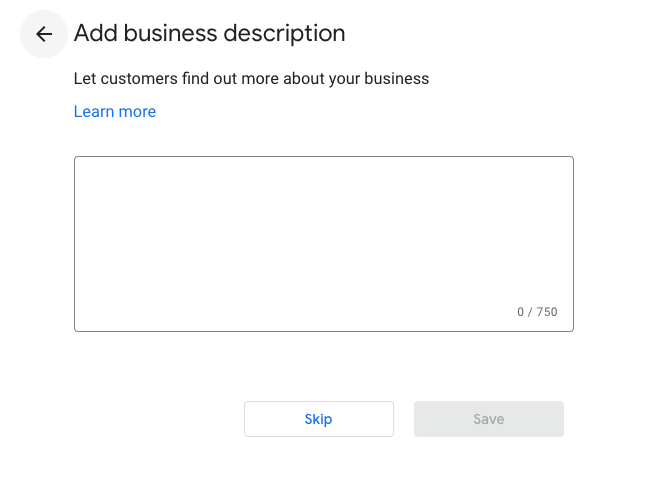
Step 15. Put a brief description for your business here. If you're having a hard time coming up with one - just start with the facts e.g. how many year's experience you have. You'll convert better if you mention that customers can book services or get a quote 24/7 from your website.
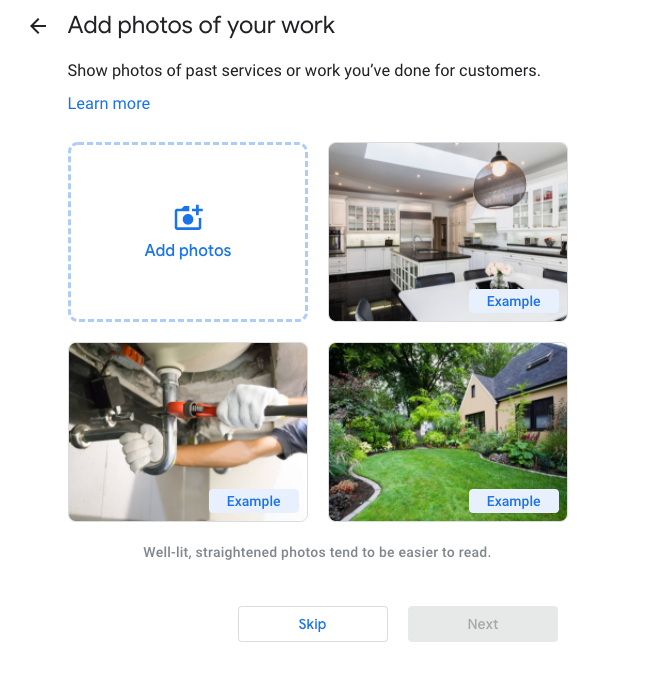
Step 16. Make it rain with photos! Once this is all set up we'll be piping over your completed job photos regularly too - keeping this feed current and demonstrating to Google and potential customers that you're top of the game (search).
Step 17. You can skip or claim your $100 free advertising credit - it won't go anywhere so save it for spring when the most customers are looking for your services.

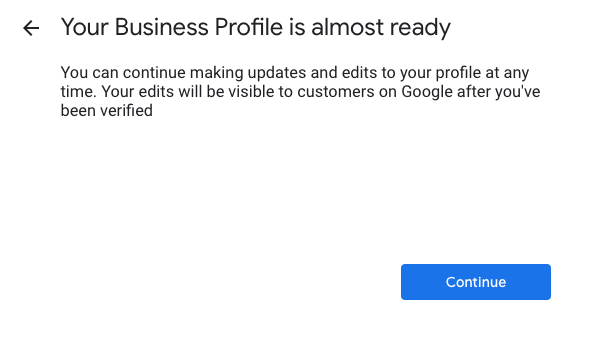
Step 18. Hit continue to finish setting up your profile on Google My Business
Congratulations! You now have a proven Search Strategy working for you 24/7 that will compound in the background as you do more on the LawnGuru platform. The more you do, the more you'll multiply your web traffic as we take your results and broadcast them out to the world via Google My Business activity.